User Management Overview
Overview
The User Management module manages user accounts in the system, ensuring that only authorized users can access and operate system functions.
What this module can do for you:
- Create and manage user accounts
Main Features
- User Account Management: Create, delete, edit, enable, and disable user accounts
Interface Layout
The User Management page uses a standard list layout containing the following areas:
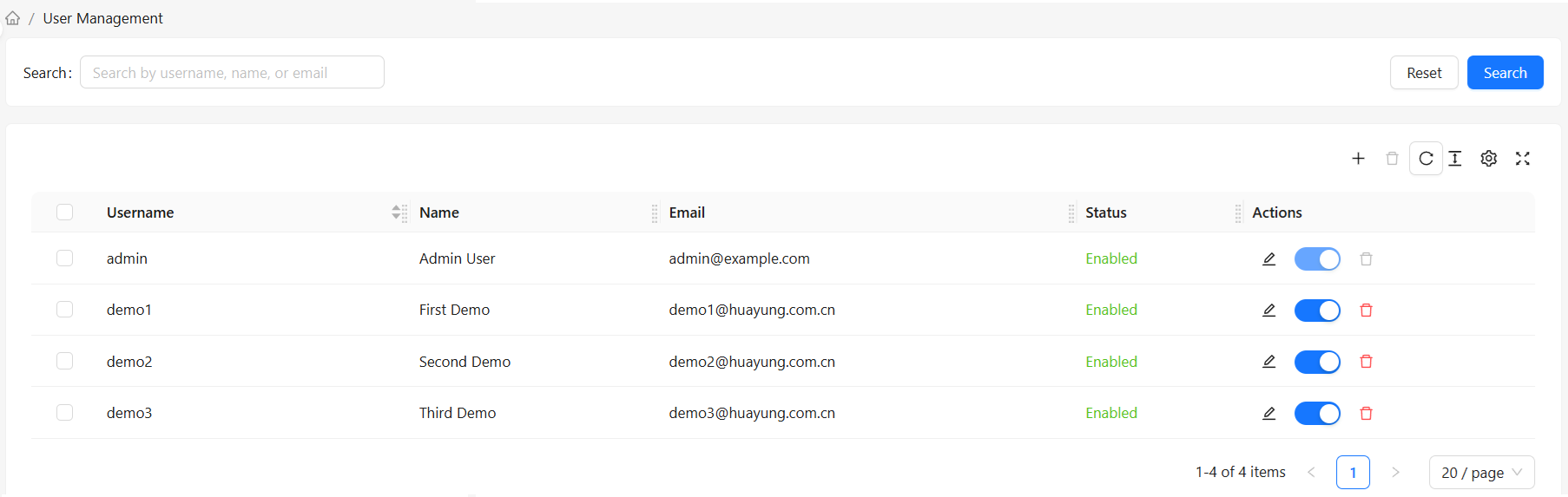
User List
Displays a table of all system users containing:
- Username
- Name
- Status
- Actions
Toolbar
The top toolbar provides common operations:
- Create user
- Batch operations
How to Use
View User List
- Select "User Management" in the left navigation bar
- The system displays all users by default
- Edit user information, change passwords, disable/enable users
Search Users
Use the search box at the top to quickly find users:
- Search by username
- Search by email
- Search by first name or last name
Toolbar Actions
| Button | Function | Use Case |
|---|---|---|
| Create User | Opens the create user dialog | Add new users to the system |
| Delete / Batch Delete | Delete user accounts | Remove users no longer needed |
User List Row Actions
| Button | Function | Use Case |
|---|---|---|
| Edit | Modify user information | Update basic user info or password |
| Disable/Enable | Toggle user status | Temporarily prevent user from accessing the system |
| Delete | Delete user account | Remove users no longer needed |
User Details
Basic Information
User details contain the following information:
| Field | Description | When to Fill |
|---|---|---|
| Username | User's login identifier, cannot be modified after creation | Required when creating a user; must start with a letter and only contain letters, numbers, underscores, and hyphens |
| First Name | User's displayed first name | Required when creating a user; only letters and Chinese characters allowed |
| Last Name | User's displayed last name | Required when creating a user; only letters and Chinese characters allowed |
| User's contact email | Required when creating a user | |
| Password | User's password | Required when creating a user |
| Account Status | User account disabled/active status | Active by default |
Roles and Permissions
Except for the built-in administrator account, all other users have the CMDB user role with permission to use all functions except User Management.
Account Status
| Status | Description |
|---|---|
| Active | User can log in to the system normally |
| Disabled | User cannot log in to the system |
Security Recommendations
Password Policy
- Minimum password length: 6 characters
- Recommended to include uppercase and lowercase letters and numbers
- Change passwords regularly (recommended every 90 days)
- Do not use default passwords
Frequently Asked Questions
Q: How to reset a user's password?
A:
- Find the target user in the user list, click the "Edit" button on the user row
- Set a new password in the "Edit User" dialog:
- The original password is not displayed during editing; leave blank to keep the original password
- Confirm the operation
Q: What if a user forgets their password?
A:
- Contact an administrator to manually reset the password
Q: How can an administrator set a password policy?
A:
- The current version does not support setting custom password policies; use the built-in password policy described above
Q: How to restrict user access by time?
A:
- The current version does not support time-based access restrictions
- You can temporarily restrict access by disabling user accounts
- Or disable user accounts outside of working hours
Q: What happens to data after deleting a user?
A:
- Deleting a user does not delete the CI data and other business data created by that user
- The creator and updater information for CIs and other business data is preserved
- However, the user can no longer log in to the system