Change History Tab
Overview
The Change History tab displays all change records for a CI. Every time a CI is created or updated, and when CI relationships are created, updated, or deleted, the system automatically records the change history, including change time, change type, operator, and other information.
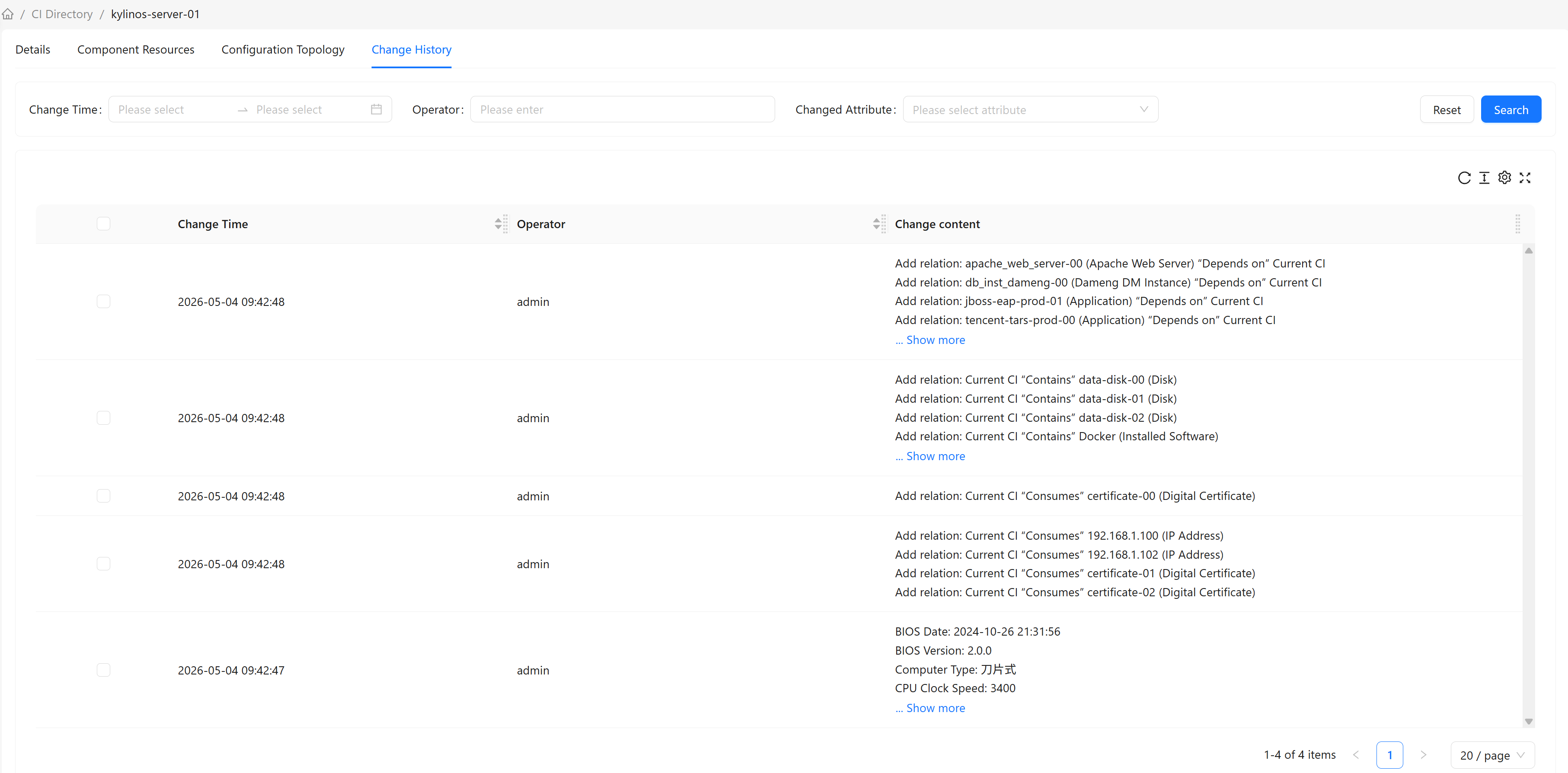
Change History Content
Change Record Information
Each change record contains the following information:
| Field | Description | Example |
|---|---|---|
| Change Time | When the change occurred | 2026-01-15 14:30:25 |
| Operator | User who performed the change | admin |
| Change Content | Specific attribute changes | Name: old value → new value |
Change Content Display
Change content displays specific attribute changes:
- Attribute Changes: Attribute name, old value, new value, key-value pair changes
- Relationship Changes: Add/delete/update relationships
Track History Configuration
Enabling Attribute Tracking
Not all attributes have change history recorded. Only attributes with Track History enabled in the CI type definition are tracked.
How to Enable:
- Check
Track Historyin the CI type's attribute definition - After saving, all changes to that attribute will be recorded
Commonly Tracked Attributes:
- Core attributes like
Name,Description - Important attributes like
Status,Environment - Other business-critical attributes
Viewing Trackable Attributes
To see which attributes have history tracking enabled:
- Navigate to CI Type Management
- Select the corresponding CI type
- Check the
Track Historycolumn in the attribute list
Use Cases
Scenario 1: Audit Records
Business Need: During an audit, trace a CI's change history to determine who modified what and when.
Steps:
- Open the CI's detail page
- Switch to the "Change History" tab
- View all change records
- Expand records to view detailed change content
Scenario 2: Fault Troubleshooting
Business Need: A CI has a problem, and you need to review recent changes to determine if the issue was caused by a modification.
Steps:
- Open the problematic CI's detail page
- Switch to the "Change History" tab
- View recent change records
- Analyze whether changes are related to the problem
Frequently Asked Questions
Q: Can change history be deleted?
A: No. Change history is system-generated audit logs that cannot be manually deleted or modified. This ensures data integrity and traceability.
Q: How long is change history retained?
A: Change history retention policies are configured by the system administrator. Generally, change history is retained long-term.
Q: Why do some attributes have no change records?
A: Only attributes with Track History enabled in the CI type definition record change history.
Q: Is change history real-time?
A: Yes. Each time a CI modification is saved, the system immediately creates a change history record.
Q: Can change history records be modified?
A: No. Change history records are read-only and cannot be modified. This ensures the authenticity and integrity of audit records.
Q: How to view relationship change history?
A: The Change History tab displays relationship additions, deletions, and updates. Relationship changes show the relationship type and associated CIs.