Dashboard Management
Overview
The Dashboard Management module is used to create and manage visual dashboards that display CI data through charts, tables, and other widgets.
What this module can do for you:
- Create custom dashboards to display key metrics and data
- Manage dashboard groups to organize dashboards by category
- Clone existing dashboards to quickly create similar ones
- Import and export dashboards for backup and migration
- View and edit dashboard layout and configuration
Main Features
- Dashboard List: Display all dashboards in a list format
- Dashboard Groups: Support creating and managing dashboard groups for categorization
- View Mode: View dashboard content in read-only mode
- Edit Mode: Visually edit dashboard layout and widgets
- Import and Export: Support batch import and export of dashboards
- System Protection: System preset dashboards are protected and cannot be edited or deleted
Interface Layout
The Dashboard Management page uses a table layout:
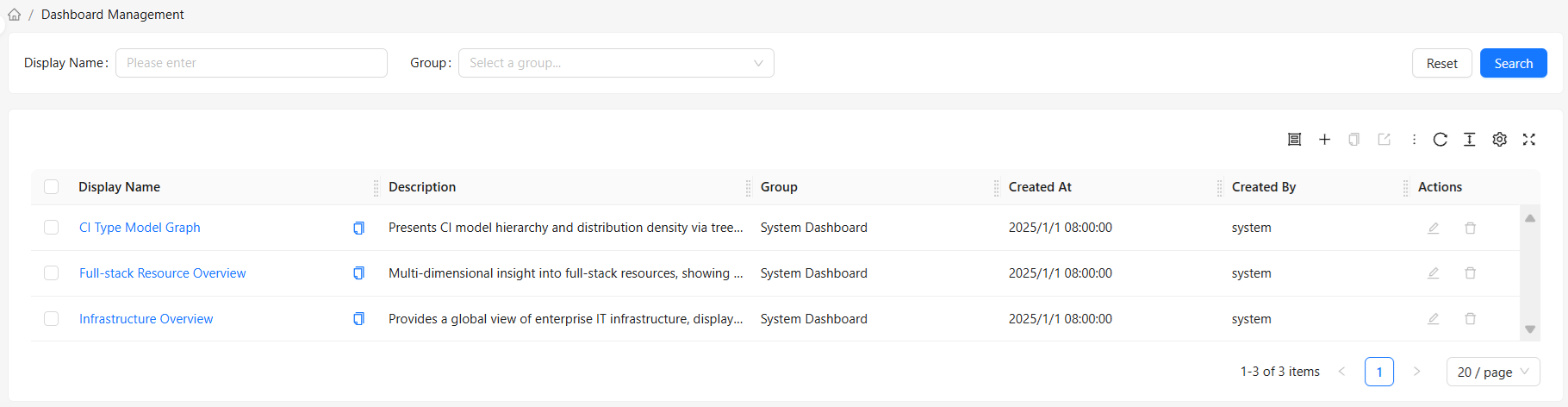
Table Content
The dashboard list displays the following information:
| Column | Description | Default Display |
|---|---|---|
| Display Name | Display name of the dashboard | Yes |
| Description | Detailed description of the dashboard | Yes |
| Dashboard Group | Group the dashboard belongs to | Yes |
| Created By | User who created the dashboard | Yes |
| Created At | Time the dashboard was created | Yes |
| Updated At | Last update time of the dashboard | No |
| Updated By | User who last updated the dashboard | No |
Hidden columns can be displayed through the column settings feature.
How to Use
View Dashboard List
- Go to the "Dashboard Management" module
- View the list of all dashboards
- Use the search function to filter by display name
Toolbar Actions
| Button | Function | Use Case |
|---|---|---|
| Manage Dashboard Groups | Open the dashboard group management dialog | Create, edit, delete dashboard groups |
| Create Dashboard | Create a new dashboard | Add a new visual dashboard |
| Clone Dashboard | Clone the selected dashboard | Create a copy based on an existing dashboard |
| Export | Export the selected dashboard(s) | Backup or migrate dashboard definitions |
| Import | Import dashboard file(s) | Restore dashboards from backup files |
Row Actions
Each dashboard row supports the following actions:
| Action | Description | Restriction |
|---|---|---|
| Edit | Edit dashboard basic information (display name, description, group) | System dashboards cannot be edited |
| Delete | Delete the dashboard | System dashboards cannot be deleted |
View a Dashboard
- Click the "Display Name" of a dashboard in the table
- The system navigates to the dashboard detail page
- The dashboard content is displayed in read-only mode
- Click the "Edit" button to switch to edit mode to modify the dashboard layout and widgets
Edit Dashboard Information
- Click the "Edit" button on the dashboard row
- Modify the dashboard information in the popup dialog:
- Display Name: Editable
- Description: Editable
- Dashboard Group: Editable
- Name, Created By, Created At, Updated At, Updated By: Read-only
- Click "OK" to save changes
Delete a Dashboard
- Click the "Delete" button on the dashboard row
- Click "OK" in the confirmation dialog
- The dashboard is permanently deleted
Note:
- System dashboards (created by "system") cannot be deleted
- Deletion is irreversible
- Make sure the dashboard is no longer needed before deleting
Dashboard Group Management
Open Dashboard Group Management
Click the "Manage Dashboard Groups" button in the top toolbar to open the dashboard group management dialog.
Create a Dashboard Group
- Click the "Create Dashboard Group" button in the dashboard group management dialog
- Fill in the group information:
- Group Name: Unique identifier for the group
- Group Display Name: Display name for the group in the interface
- Description: Description of the group's purpose
- Click "OK" to complete the creation
Edit a Dashboard Group
- Select the group you want to edit in the dashboard group list
- Click the "Edit Dashboard Group" button
- Modify the group information
- Click "OK" to save changes
Note: The name of system groups cannot be modified.
Delete a Dashboard Group
- Select the group you want to delete in the dashboard group list
- Click the "Delete Dashboard Group" button
- Confirm the deletion
Note:
- System groups cannot be deleted
- Groups that have assigned dashboards cannot be deleted — move dashboards to another group first
Create a Dashboard
- Click the "Create Dashboard" button in the top toolbar
- Fill in the basic information in the creation dialog:
- Name: Unique identifier for the dashboard
- Display Name: Display name for the dashboard
- Description: Description of the dashboard's purpose
- Dashboard Group: Select the group the dashboard belongs to
- Click "OK" to complete the creation
Clone a Dashboard
Clone Operation
The clone function is only available when a single dashboard is selected.
- Select the dashboard you want to clone in the dashboard list
- Click the "Clone Dashboard" button in the top toolbar
- Modify the cloned dashboard information in the clone dialog:
- Name: Must be modified — cannot be the same as the original dashboard
- Display Name: Can be modified
- Description: Can be modified
The dashboard group cannot be changed during cloning. The cloned dashboard retains the original dashboard's group assignment.
- Click "OK" to complete the cloning
Use Cases:
- Create variants based on existing dashboards (e.g., production dashboard → test dashboard)
- Quickly create dashboards with similar structures
Import and Export
Export Dashboards
- Select the dashboard(s) you want to export in the dashboard list
- Click the "Export" button in the top toolbar
- The system automatically downloads a JSON file containing the dashboard definition(s)
Export File Uses:
- Backup dashboard configurations
- Migrate to other environments
- Share with other users
Import Dashboards
- Click the "Import" button in the top toolbar
- Select the JSON file to import in the import dialog
- Choose whether to overwrite existing dashboards
- Click "OK" to complete the import
Import Options:
- Without overwrite: Skip dashboards that already exist
- With overwrite: Overwrite dashboards with the same name
System Dashboards
About System Dashboards
System dashboards are preset dashboards used to display key metrics and common views.
System Dashboard Characteristics:
- Created by "system"
- Cannot be edited or deleted
- Can be cloned to create custom versions
System Dashboard Protection
- Edit Restriction: The edit button is disabled for system dashboards
- Delete Restriction: The delete button is disabled for system dashboards
System Dashboard Groups
System dashboard groups contain system preset dashboards:
- The name of system dashboard groups cannot be modified
- System dashboard groups cannot be deleted
- Custom dashboards within system dashboard groups can be deleted